 WhatsApp

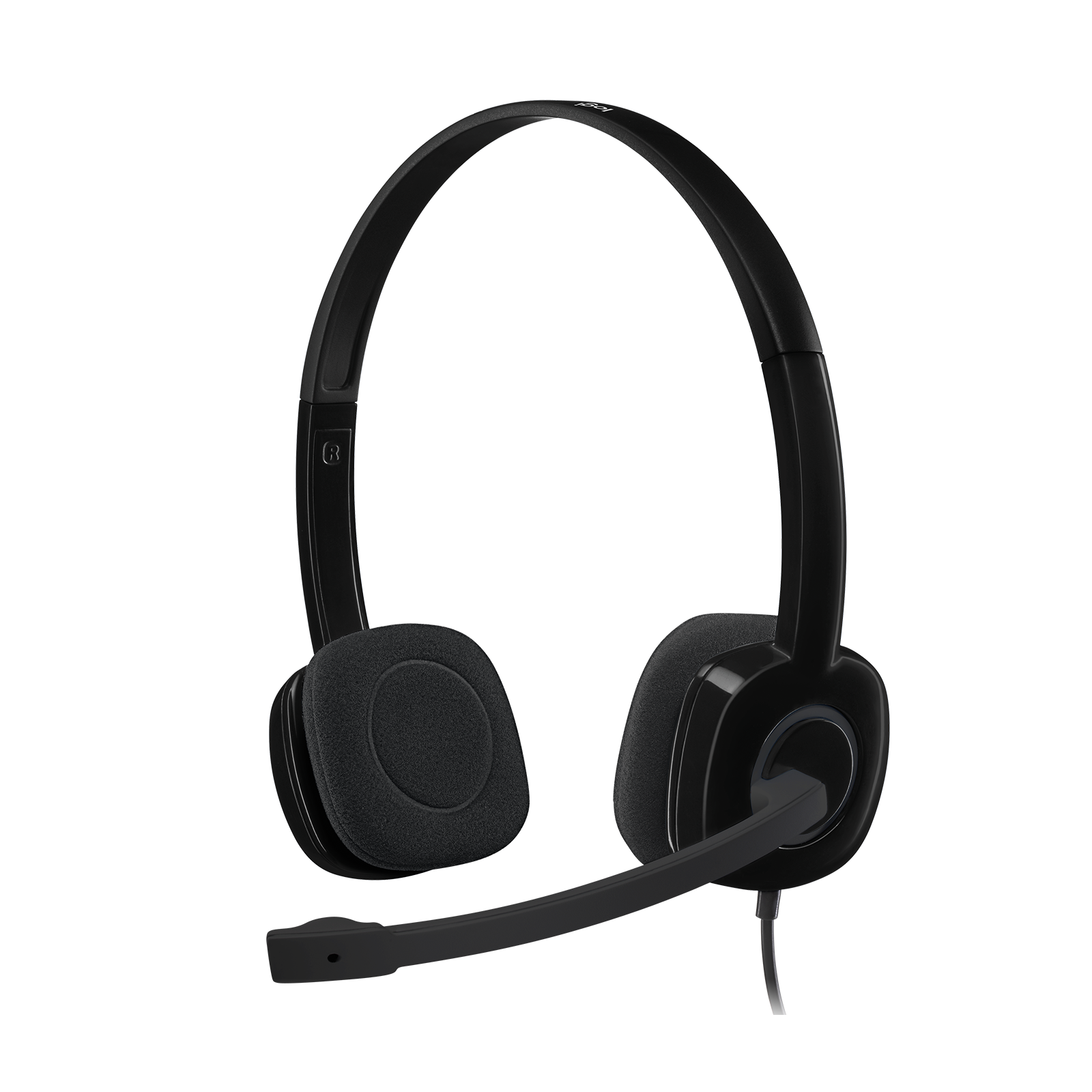
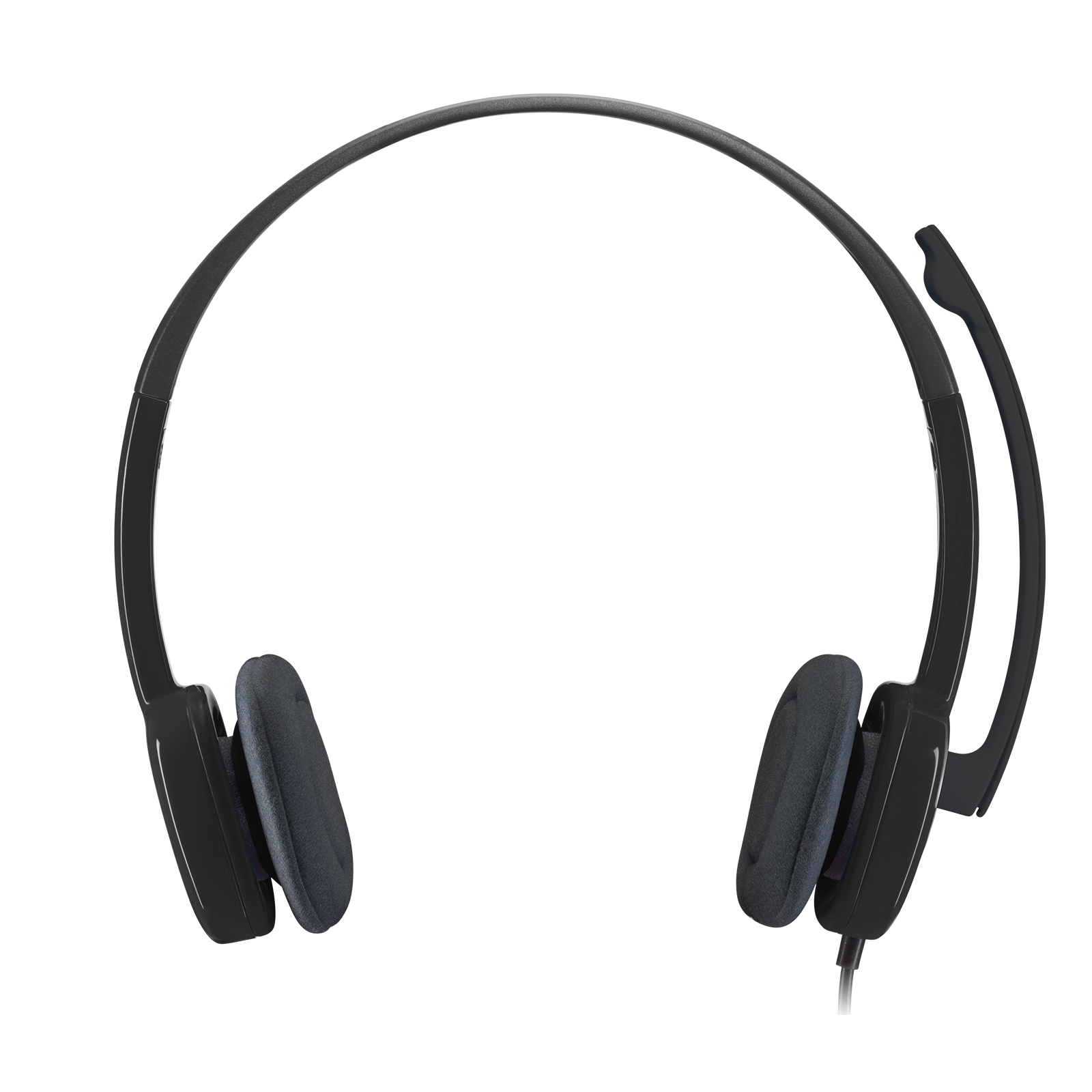
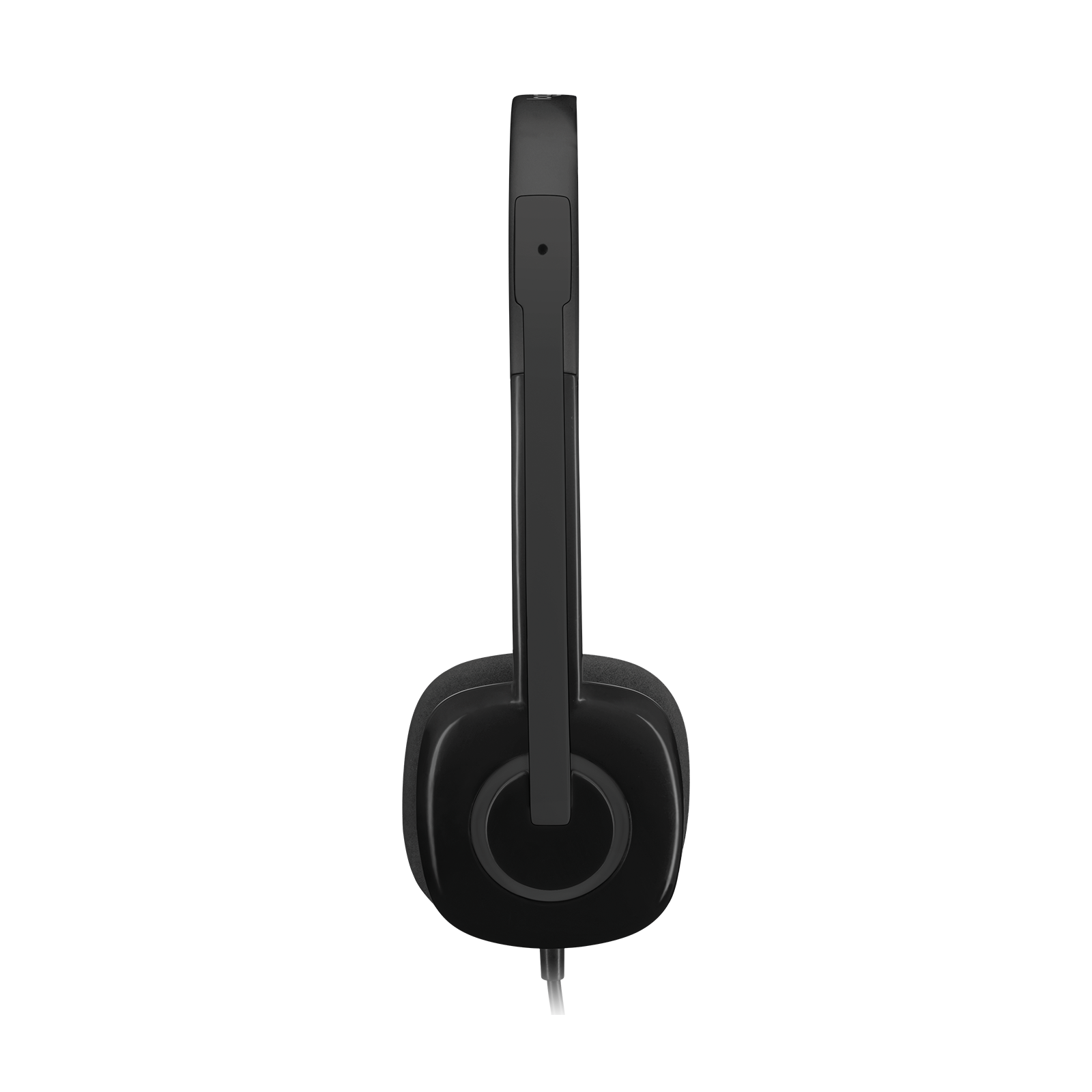
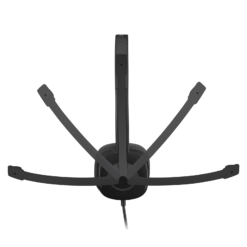
Logitech H151 Stereo Headset with Mic – Black

£16.88
In stock
| Delivery | 4–5 working days · Fully tracked |
| Returns | 30 Day Returns |
| Warranty | 12-Month Warranty |
| Payment | Visa · Mastercard · Apple Pay · Klarna |
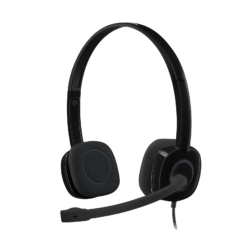
The Logitech H151 stereo headset — a lightweight stereo headset with a single 3.5mm jack that plugs into laptops, phones and tablets, a noise-cancelling microphone that rotates 180° to either side, in-line volume and mute controls, and soft foam ear cushions. Black.
- ✓ Single 3.5mm jack — laptops, smartphones and tablets with a headset socket
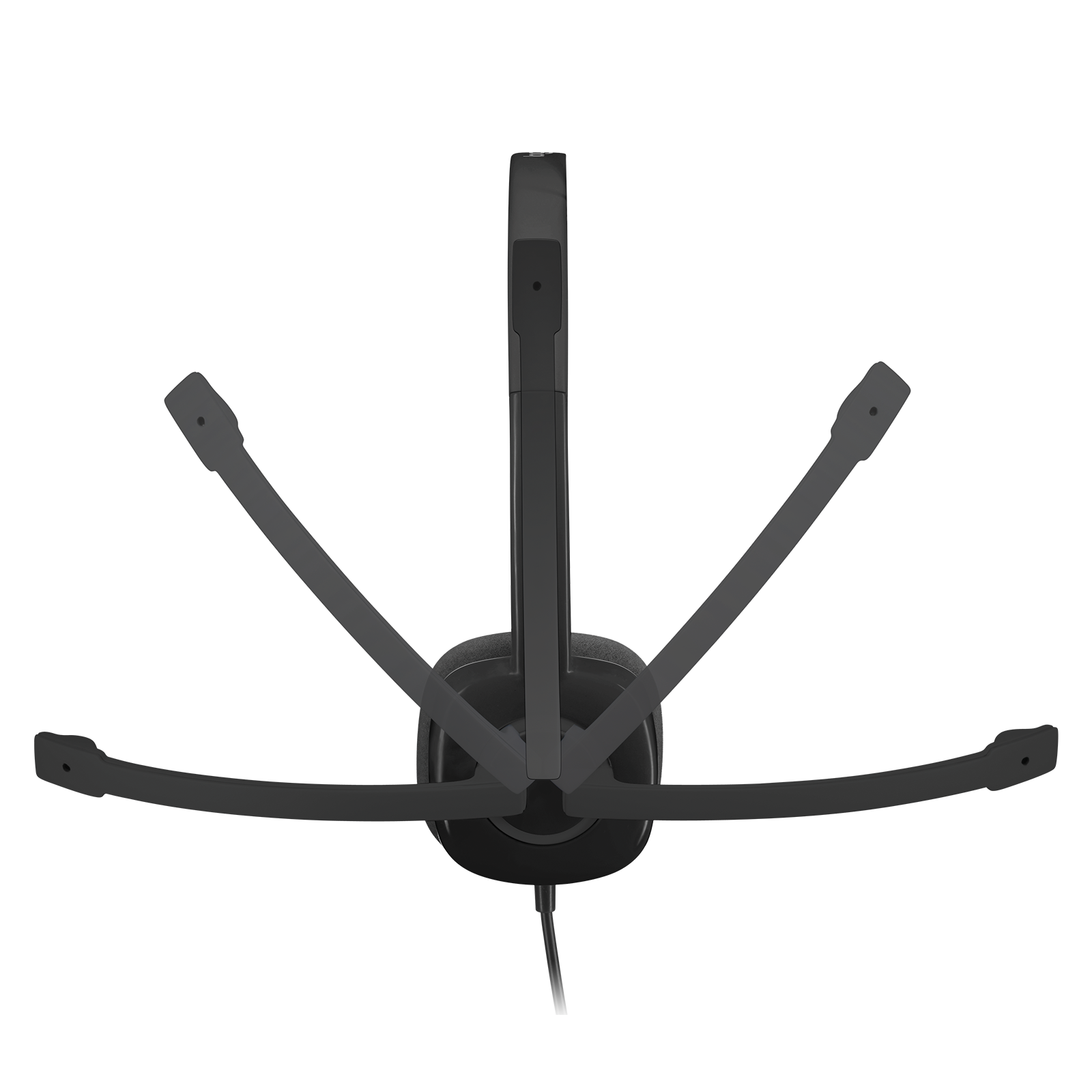
- ✓ Noise-reducing mic on a boom that rotates 180° — wear it on the left or right
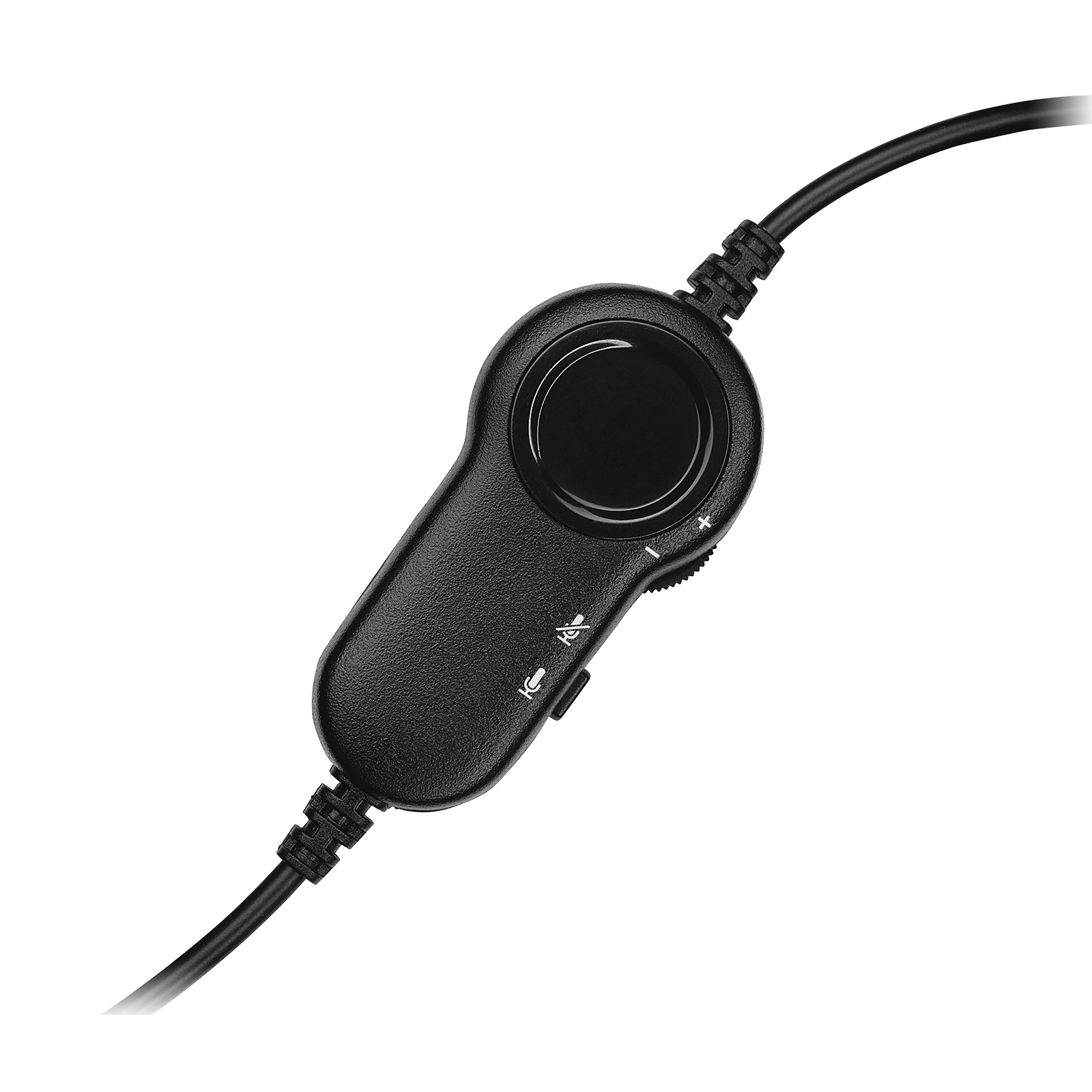
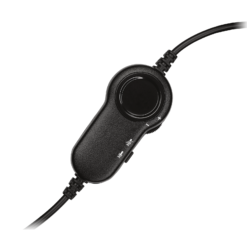
- ✓ In-line controls — adjust volume or mute a call without touching the screen
- ✓ Stereo sound · adjustable headband · ultra-soft foam ear cushions · no drivers or batteries
The Logitech H151 stereo headset is the simplest way to get a proper microphone and headphones on a call: one plug, no software, no batteries. It connects through a single 3.5mm jack, the round headset socket found on nearly every laptop, many smartphones and most tablets, so the same headset moves between the work laptop, a personal phone and a child’s school tablet. The microphone sits on a flexible boom that rotates through 180°, so it can be worn on the left or the right, and it reduces background noise so your voice comes through clearly. A small control on the cable adjusts the volume and mutes the microphone, so you can silence yourself instantly without hunting for the button in a call window. Stereo sound handles music and video between meetings, and soft foam ear cushions on an adjustable headband keep it comfortable. It is the step up from Logitech’s H111, adding those in-line controls, and it is the sensible everyday headset for home working, online lessons and calls on the move.
Single 3.5mm Jack — Check Your Socket
One Plug for Sound and Microphone
The H151 has one 3.5mm plug that carries both the headphone audio and the microphone signal. Look closely and you will see three black bands on the metal tip rather than two — that is what lets one plug do both jobs. Laptops, smartphones with a headphone jack and tablets all use this combined type of socket, usually marked with a small headset icon, so the H151 works in them directly with both sound and microphone. The one place to check before ordering is an older desktop PC. Many desktop towers have two separate round sockets instead — a green one for headphones and a pink one for the microphone. Plugged into only the green socket you will hear audio but the microphone will not work. The fix is a simple 3.5mm headset splitter, sometimes called a Y-adapter, which splits the single plug into separate headphone and microphone plugs. They are inexpensive and widely available. If your computer has a single socket with a headset symbol, you need nothing extra. For phones without a headphone jack, the H151 needs a USB-C or Lightning to 3.5mm adapter.
180° Rotating Microphone
Heard Clearly, on Either Side
The difference between a headset microphone and a laptop’s built-in one is distance. The laptop microphone is half a metre away and hears the whole room; the H151’s microphone sits on a boom a few centimetres from your mouth, so your voice dominates and the keyboard, fan and background conversation fall away. The boom is flexible, so you can bend it to the right position for your face, and it is designed to reduce background noise. It also rotates through 180°, which means the microphone can sit on either the left or the right — useful if you hold a pen in one hand, share a desk layout, or simply prefer one side. When you are only listening, the boom tucks up out of the way. For online lessons, customer calls, Teams and Zoom meetings or a family video call, this is the upgrade that makes the other people stop asking you to repeat yourself.
Stereo · In-Line Controls · Foam Cushions
Light Enough to Forget You Are Wearing It
The H151 is built to be light and simple rather than heavy and elaborate. The headband has a wide range of adjustment, which is why it fits adults and older children alike, and the ultra-soft foam ear cushions rest gently on the ears for hours without the heat that leatherette can build up. Stereo drivers give proper left and right sound, so music and video are more than an afterthought between calls. The in-line control on the cable gives you volume up, volume down and microphone mute within easy reach — the fastest way to go silent when someone walks into the room, and far quicker than finding the mute button in a meeting window. It works independently of the call app, so the controls behave the same whether you are on Teams, Zoom, a phone call or a video. That simplicity is also why schools and offices buy it in bulk — there is almost nothing that can go wrong.
Right choice if you…
✔ Need a headset for a laptop, tablet or phone with a single headset socket
✔ Want one headset to move between several devices
✔ Want volume and mute on the cable instead of on the screen
✔ Want something with nothing to install, pair or charge
Consider something else if…
✘ Your desktop PC has separate pink and green sockets — you will need a 3.5mm headset splitter
✘ You want a USB connection and leatherette cushions for a desk-only setup — the Logitech H390 USB headset fits that
✘ Your phone has no headphone jack — you will need a USB-C or Lightning adapter
Logitech H151 Stereo Headset — Technical Specifications
| Brand | Logitech |
| Model | H151 Stereo Headset |
| MPN | 981-000589 |
| EAN / GTIN | Printed on retail packaging |
| Colour | Black |
| Type | Wired stereo headset with boom microphone |
| Connector | Single 3.5mm combined headset jack |
| Controls | In-line · volume up / down · microphone mute |
| Microphone | Noise-cancelling · flexible boom · rotates 180° (left or right) |
| Audio | Stereo |
| Comfort | Adjustable headband · ultra-soft foam ear cushions |
| Compatibility | Computers, smartphones and tablets with a 3.5mm headset socket |
| Warranty | Manufacturer warranty (Logitech) |
In the Box
Frequently Asked Questions
The sound works but the microphone does not — why?
This almost always means the headset is plugged into a headphone-only socket. The H151 uses a single combined plug for sound and microphone. On a desktop PC with separate green and pink sockets, use a 3.5mm headset splitter (Y-adapter) so the microphone connects to the pink socket. Also check that the H151 is selected as the microphone in your computer’s sound settings or your call app.
Will it work with my phone?
Yes, if the phone has a 3.5mm headphone jack. Phones without one need a USB-C to 3.5mm or Lightning to 3.5mm adapter that supports a microphone.
Does it need software or batteries?
No. It is a plain wired headset — plug it in and it works on Windows, macOS, ChromeOS, Android and iOS devices with a headset socket.
Can I wear the microphone on the right?
Yes. The boom rotates through 180°, so the microphone can sit on the left or the right, and it tucks up out of the way when you are only listening.
What is the difference between the H151 and the H111?
Both use a single 3.5mm jack and a 180° rotating microphone. The H151 adds in-line volume and mute controls on the cable; the H111 has no controls but a longer 2.35m cable. Choose the H151 if you want to mute and adjust volume without touching the screen.
Condition
Brand New — Retail Packaging
Warranty
Manufacturer warranty (Logitech)
Delivery
4–5 Working Days · Fully Tracked
Also Available at maibo
Browse the full headsets and audio range at maibo.
| Brand | Logitech |
|---|---|
| Colors |
Only logged in customers who have purchased this product may leave a review.
Related products

Reviews
There are no reviews yet.